Home / Help & Docs / Taking and recording payments
Taking and recording payments
← The booking lifecycle · Next: Spots and waitlists →
This is the money process: how people pay you, and how you write it down so your
records stay correct.
Two kinds of payment
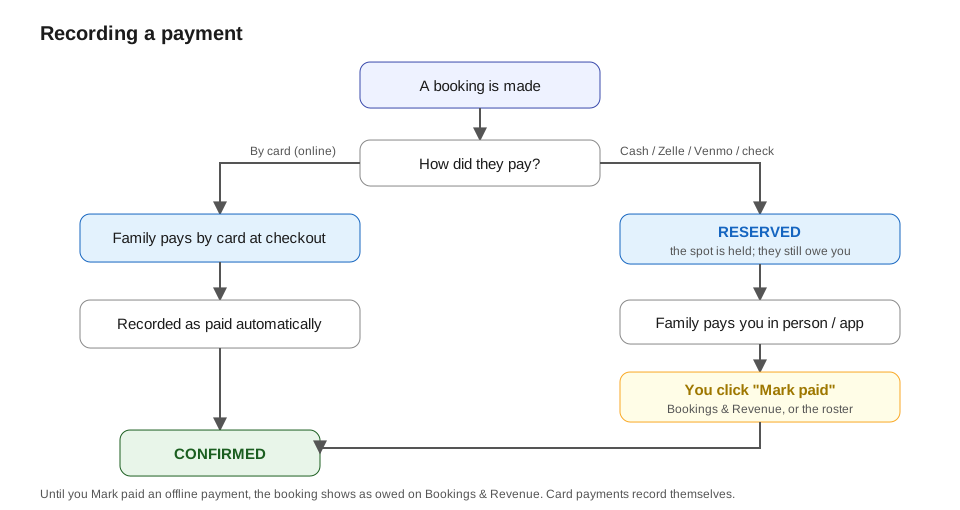
KeepsYa handles money in two ways:
- Pay later (offline): cash, Zelle, or check. The person picks this when
they sign up. Their spot is Reserved right away, and they still owe you.
You collect the money in person or by app, then mark it paid. This is
built in and ready to use. - Pay now (card): credit/debit card, PayPal, Venmo. The person pays online
immediately and the spot becomes Confirmed by itself. This needs the
KeepsYa Payments add-on. You do not have to record anything; it records
itself.
The rest of this page is mostly about the pay-later kinds, because those are
the ones you record by hand.
The cash / Zelle / check process, step by step
1. Family signs up and picks Cash (or Zelle, or Check)
        |
2. Their spot is RESERVED. They get an email with your instructions.
        |
3. They pay you (cash in hand, Zelle transfer, or a check)
        |
4. You open the event roster and click "Mark paid"
        |
5. Their spot is now CONFIRMED. The money shows in your report.
Cash
- The family signs up and chooses Cash.
- They get the instructions you wrote in Settings (for example, “Bring
exact cash to the first session”). - They hand you the cash.
- You open the roster and click Mark paid next to their name.
Zelle
- The family signs up and chooses Zelle.
- Their email shows your Zelle details (you can add a QR code or a
tap-to-pay link in Settings to make this easy). - They send the Zelle transfer.
- When you see it land in your bank, click Mark paid on the roster.
Check
- The family signs up and chooses Check.
- Their email tells them who to make the check out to and where to send it.
- The check arrives and you deposit it.
- Click Mark paid on the roster.
“Booking the payment” = Mark paid
Recording a payment is one click. There are two easy ways:
- On the roster. Go to KeepsYa → Rosters, open the
event, find the person, and click Mark paid. Their status turns to Confirmed. - From the alert email. When someone reserves with an offline method, you get
an email with a one-tap “mark paid” button. Tap it the moment the money
lands and it is recorded – no need to even log in.
Made a mistake? You can click Mark unpaid on the roster to undo it.
Deposits (part now, rest later)
If you turned on Allow deposit for an event, a family can pay part of the
price up front and the rest later. KeepsYa keeps track of how much they have paid
and how much they still owe. You mark the remaining payment paid the same way,
when you receive it.
How to keep your books straight (reconciliation)
“Reconciling” just means making sure the money you actually received matches what
KeepsYa says. Do this on a simple schedule (for example, once a week):
- Go to KeepsYa → Bookings & Revenue.
- Set the date range and the Paid filter to Unpaid to see who still
owes you. - Chase down or wait on those payments. As money arrives, Mark paid.
- Switch the filter to Paid to see what has come in. The totals at the
bottom tell you how much you have collected and how much is still owed. - You can Export to CSV (a spreadsheet) any time to share with a partner or
keep for your taxes.
Tip: A “Reserved” booking that never gets paid is just someone who signed
up but did not pay. You can cancel it to free the spot (see
Cancellations).
Automatic help collecting money
You do not have to chase every unpaid hold by hand. KeepsYa can do three things for
you automatically, each on its own timer that you set in
Settings → Reminders (see Settings):
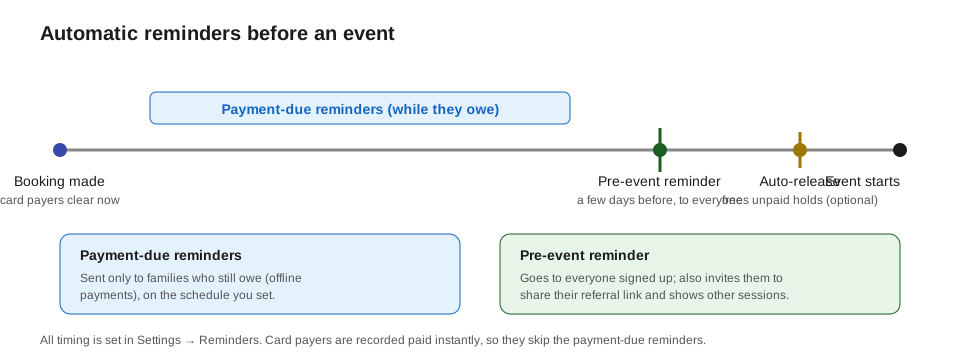
- Remind the family. When an offline booking is still unpaid, KeepsYa emails the
family a friendly “you still owe” reminder every so many hours, up to a maximum
number of times, then stops. (Starting values: every 24 hours, up to 3 times.) - Remind you. On a schedule you pick, KeepsYa emails you one summary of
everyone who still owes, so the list comes to you. (Starting value: every 7 days.) - Release an unpaid hold. If you turn this on, an unpaid hold is cancelled
automatically after the hours you set, which frees the spot and moves the
waitlist up. (Starting value: off. You can set a different number on a single
event in its Payment collection field.)
Each timer is independent, so you can use the reminders without ever
auto-releasing, or the other way around.
Where card payments fit in
If you use the KeepsYa Payments add-on for cards, PayPal, and Venmo:
- The person pays online when they sign up. Their spot goes from Pending to
Confirmed automatically when the payment clears. - If they start to pay but do not finish, KeepsYa holds the spot for a short time
(you set this as Hold time in Settings) and then releases it so it is not
stuck. - You do not mark these paid by hand; the card system reports back on its own.
Next: Spots and waitlists →