Home / Help & Docs / Accounts, login and guest checkout
Accounts, login and guest checkout
← Coach and owner playbooks · Deep-dive index
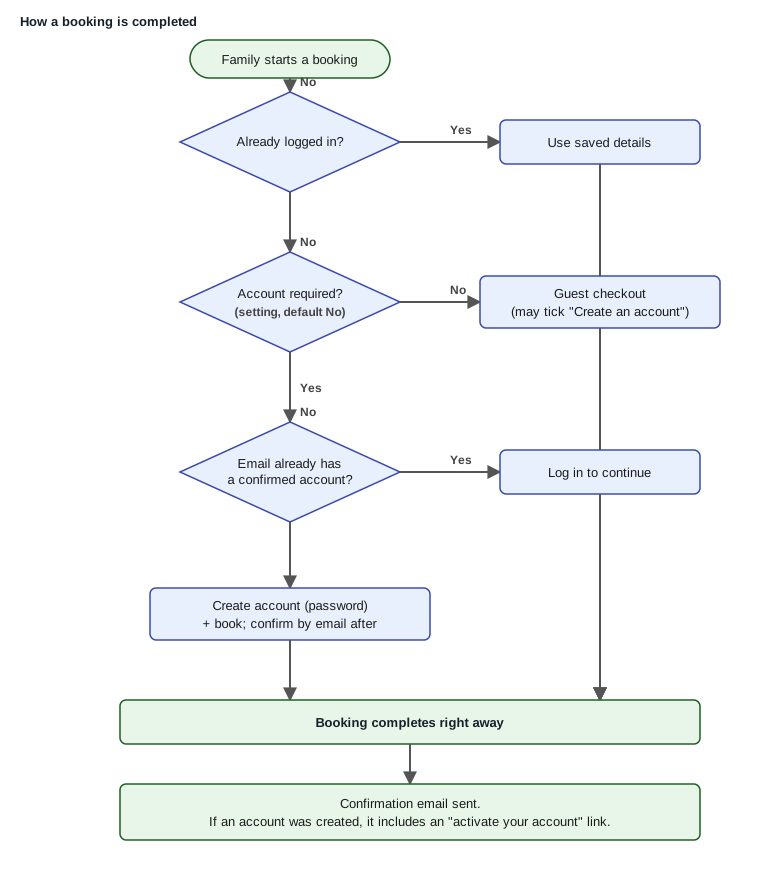
Families do not need an account to sign up (unless you turn on the
“require an account” setting, covered at the end). Guest checkout works out of the
box. An account just makes the next time faster and lets a family manage their own
bookings. This page explains how accounts work, in plain language.
Guest or account: the family chooses
When someone signs up for an event, they can:
- Check out as a guest – type their name, email, and player(s), pay, done. No
password, no account. - Create an account while signing up – the “Create an account so I can manage this
booking” box is ticked by default for guests (they can untick it). They pick a
password; the booking still goes through right away and we email a link to confirm the
account. Defaulting it on means returning families get saved players and a one-click
repeat purchase next time, which is the whole point of accounts. - Log in first – if they already have an account, they click “Already have
an account? Log in” at the top of the form.
You put the family’s account page on your site with the [keepsya_account]
shortcode. That is where they log in and see everything.
What a family sees on their account page
Once signed in, the account page opens with a quick-links bar across the top
(the handiest actions first, plus a Log out button), then their details. What’s
on it:
- Bookings – upcoming registrations, with Past tucked into a click-to-open
accordion so the page isn’t cluttered by old history. - Saved players and contact / emergency details, so they don’t retype them.
- Account credit (any balance they hold).
- Change password – a family can set a new password right on the page, without
needing the emailed reset link. (The “Forgot password?” link on the log-in window
is still there for when they’re locked out.) - A bookmarkable quick sign-in link, so a returning family can get back in with
one tap.
Near the top is a collapsible “How this works” panel: a plain-language rundown of
everything on the page (saved players, bookings, day-of check-in QR codes, changing a
password, the quick sign-in link), so a family never has to guess. It’s tucked away by
default and opens on a click.
The account page is modular: each of these is its own block, so you can place
just the pieces you want. See the shortcode reference for the
[keepsya_account] module names (including [keepsya_account_quick_links] to put
the quick-links bar somewhere full-width on its own, and [keepsya_account module="help"]
to place the “How this works” panel where you want it in a builder layout).
Private groups and delegates (Pro)
With KeepsYa Pro, you can lock an event to a named group (say, a specific
club or team) so only its members can register. You can hand one of those members
the keys as a delegate: they get a front-end portal to run their own group,
add and remove members, and even invite a brand-new person straight in as a
co-delegate. The invitation and the delegate welcome-email are both editable
under KeepsYa → Emails (the “Group emails” section), so you can explain in your
own words how the group works and what a delegate should do.
Full walkthrough: see Groups and delegates for
the complete owner setup and delegate-portal how-to.
The “Already have an account? Log in” box
At the top of every sign-up form, a family that already has an account can click
Log in. A small window opens for their email and password. When they log in,
the page reloads and they are signed in, with their saved players and details
ready to go.
Tip for families: log in before filling out the form. Logging in reloads
the page, so anything typed first is cleared. (Creating an account with the
checkbox does not reload, so that is safe to do at the end.)
Forgot the password? The same window has “Forgot password?”. It asks for the
email and sends a reset link. For safety, it always shows the same message whether
or not the email has an account, so no one can use it to discover who has signed
up.
Confirming a new account (the email step)
A new account is not active until the family clicks the confirm link we email
them. This protects everyone: it means nobody can make an account in someone
else’s name and see their information.
- The confirm email subject is “Confirm your email.”
- If it does not arrive within a few minutes, tell them to check their spam or
promotions folder. - If it is lost, they can use “Resend confirmation” on the account page.
Until they confirm, they can still attend and pay as a guest; the account is just
waiting to be switched on.
For this to work, your site must be able to send email. See the
Go-Live Checklist email step. If confirmation
emails do not send, accounts cannot be activated.
“Do my old bookings move into my new account?”
Yes, by email. When a family checks out as a guest and later creates an
account using the same email address, then confirms it, three things come
together automatically:
- Their past bookings made with that email show up in their account.
- Any store credit they had as a guest moves onto the account.
- The players they entered as a guest appear in their “My Players” list.
The one rule: it has to be the same email. If they use a different email, the
old bookings stay tied to the old email (and you can always help from the roster).
What a logged-in family can do
Once a family is logged in on the [keepsya_account] page, they can:
- See their upcoming and past bookings and how much is paid or due.
- Request a cancellation on a cancellable event before the deadline (see
Cancellations). - Reschedule a booking to another session before the deadline.
- See and use their store credit.
- Manage their saved players so the next sign-up is faster.
Managing a booking without an account
A family does not need an account to manage a booking. Every confirmation
email includes a private “View or manage your booking” link. Clicking it opens
that booking’s page, where they can request a cancellation or reschedule to
another session, no login required. The link is tied to their specific booking, so
only someone with the email can use it. (See
Cancellations for what happens to the
money.)
Requiring an account (an owner setting)
By default, families can check out as a guest. If you would rather every family
have an account, turn on KeepsYa -> Settings -> General -> Accounts ->
“Require an account to complete a booking.”
When this is on and a family is not logged in:
- If they already have an account with the email they enter, they are asked to
log in to finish (we never book under someone’s account without their
password). - If they do not have an account, they choose a password right on the form
and the booking creates their account for them.
Either way, the booking still completes right away and they get a confirmation
link by email; they do not have to stop and confirm before booking.
Worth knowing: requiring an account adds a step, and a few families abandon
sign-up when forced to make one (especially on phones for a one-time camp). Leave
this off if your priority is the most sign-ups; turn it on if you value
every family having an account more than the few you might lose. It is your call,
and you can change it any time.
You are always in control
None of this takes anything away from you. You can still sign up, edit, cancel, or
refund anyone from KeepsYa -> Rosters, whether or not they have an
account. Accounts are a convenience for families, not a requirement.
Next: Groups and delegates → (KeepsYa Pro)