Home / Help & Docs / Cancellations, credit and refunds
Cancellations, credit and refunds
← Spots and waitlists · Next: Check-in day →
This page explains exactly what happens to a spot and to the money when a family
wants to cancel a sign-up. It describes how KeepsYa works today.
The short version: a family does not cancel and grab their money on their own.
They ask to cancel, the spot is held while you look, and you decide
what happens to the money: keep it as credit, keep it as a charge, or send it
back. Nothing moves until you choose.
Two settings decide what a family can do
1. Is the event cancellable at all?
Every event has a Cancellation policy in its Registration & Payment box:
- Cancellable (the normal setting, and the default for older events): families
can ask to cancel online, up to the deadline. - Non-cancellable / non-refundable: there is no online cancel option at
all. The family sees no button; if they need help they contact you directly.
2. When is the deadline?
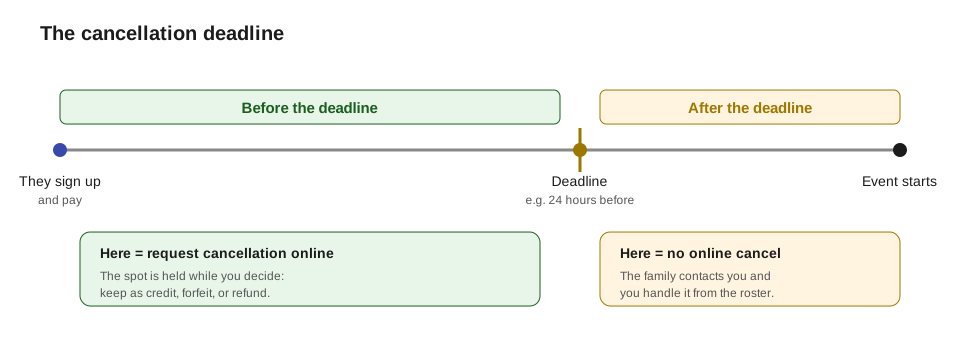
A cancellation deadline is a number of hours before the event starts. The
starting value is 24 hours. Change the default for all events in
Settings → Credit cutoff, or set a different number on a single event in its
Registration & Payment box. On a non-cancellable event the deadline field is
grayed out, because there is nothing to time.
What the family sees and does
On their account page (the [keepsya_account] page on your site), each upcoming
booking shows its status and, when allowed, a Request cancellation button.
The button appears only when all of these are true:
- the event is Cancellable, and
- the deadline has not passed, and
- the session has not started yet.
When a family clicks it:
- The booking moves to a Cancellation requested status.
- The spot stays held. It is not freed yet, so nobody else can take it while
you decide. (Held bookings still count against capacity, so the seat is safe.) - The family sees “Pending review – we will email you with the outcome,” and
gets a “we got your request” email. - You get an email that a request is waiting.
If the deadline has passed, the event is non-cancellable, or the session has
started, there is no button. The family is told to contact you, and you handle it
by hand from the roster.
What you do: decide credit, forfeit, or refund
Requests collect on one screen: KeepsYa → Cancellation Requests. The
menu shows a small number badge when requests are waiting. For each request you
pick one of three outcomes:
- Keep as credit – the money they paid becomes store credit on their
account (real, cash-backed credit) to spend on a future session. The spot is
freed. - Forfeit – the booking is cancelled and you keep the money (for example,
a late cancel your policy does not refund). The spot is freed. - Refund – the booking is cancelled and KeepsYa records a refund. You then
send the real money back separately (Zelle / Venmo / cash / card). The spot is
freed.
Whichever you choose, the family gets a decision email, and freeing the spot
runs the waitlist: if anyone is waiting, KeepsYa promotes the next family
automatically.
Safe by design: each decision is processed atomically, so a double-click
(yours or the family’s) can never double-credit or double-refund a booking.
Store credit vs a real refund
This is the part people mix up, so here it is clearly:
- Store credit is money kept on the family’s account to spend on a future
event. “Keep as credit” creates this. It is not money leaving your bank. - A refund is real money going back to the family. Choosing “Refund”
records it on the books; you send the actual money on purpose.
How to send a real cash refund
- On the request, choose Refund (this records it against the booking), or for
an older balance go to KeepsYa → Stored Value and use Refund. - Send the money to them separately (for example, a Zelle transfer).
- KeepsYa records the refund against their real-money (cash-backed) balance so
your books stay correct.
Two rules to remember:
– You can only cash out real-money credit (money they actually paid).
– Bonus / promotional credit (gifts, referral rewards) can be spent on events
but can never be turned into cash.
Paying for fewer things (downgrades)
If you edit a family’s booking to something cheaper before the deadline (fewer
kids, fewer days, or a cheaper package), KeepsYa gives them store credit for the
difference they overpaid. After the deadline it does not do this automatically,
but you can adjust it by hand.
Rescheduling instead of cancelling
Often a family does not want to cancel, just to move to a different session.
KeepsYa can move a booking to another event and sort out the money automatically.
Who can move a booking, and when:
- The family, on their own, before the deadline on a cancellable event:
- Logged in? Each booking on their account page has a Reschedule button
next to “Request cancellation.” - No account? Every confirmation email has a “View or manage your booking”
link. It opens their booking page where they can reschedule (or request a
cancellation) without logging in. The link is private to them. - You (the organizer), from KeepsYa -> Rosters, using the
Reschedule action on a booking. You can do this any time, even after the
deadline.
What happens to the money (handled automatically, and the family is emailed):
- Cheaper session: the difference becomes account credit for a future
session. - More expensive session: KeepsYa uses any account credit they have first,
then shows the remaining balance due, which they pay the normal way.
A few rules:
- The family can move to any upcoming session of any type (we want it easy for
them to use money they already paid). - If the target session is full, they can choose to join its waitlist.
- Moving frees the spot on the old session (the waitlist there moves up).
- Camp / multi-day package bookings are moved by you on the roster, not by
the family, because their day-by-day pricing is more involved.
The confirmation email states the deadline
When a family books a cancellable event, their reserved and confirmed emails now
tell them the cancellation deadline in plain words, and that funds may go
toward a future session. On a non-cancellable event, the email says the
booking is non-refundable, so there are no surprises later. The reserved and
confirmed emails also include a private “manage your booking” link they can use
to reschedule or request a cancellation.
When you cancel the whole event
Sometimes you have to cancel a session (weather, low numbers). When you cancel an
event from the roster (or set its status to Canceled, see below), KeepsYa asks how
you want to handle the families who already booked, and lets you choose one of:
- Refund cards, credit the rest (recommended): card payments are refunded straight
to the card, and cash, Venmo, Zelle, or check (which cannot be pushed back) become
account credit. The tidiest choice when families paid in different ways, and it needs
no manual payout list. - Give everyone store credit for a future session (no card refunds), or
- Refund everyone: card payments auto-refund to the card; cash / Venmo / check go on
a printable payout list for you to pay back by hand, or - No credit or refund: cancel the bookings and keep what was paid, for the cases
where your policy does not return the money. Families are told the session is
cancelled and to contact you about anything they paid; a pre-paid punch card is
still returned.
Everyone affected gets an email letting them know the outcome that applies to how they
paid. With any option except “no credit,” paying families are made whole regardless of
the usual family-cancel deadline.
Two ways an event shows as cancelled
There are two separate controls, and it helps to know the difference:
- KeepsYa’s “Cancel event” (from KeepsYa → Rosters) is the full flow above:
it cancels every active booking and makes paid families whole (refund or credit),
emails everyone, and frees the spots. Use this when money is involved. - The Events Calendar’s “Events Status → Canceled” (the status box on the event
editor) is a lighter switch. Setting it to Canceled immediately closes
sign-ups: the Sign Up form is replaced with a “this event has been cancelled”
notice, the cancelled badge shows, and even a walk-up link is blocked. But it does
not touch any existing bookings or move any money.
So if you set the calendar status to Canceled and the event still has registered
attendees, KeepsYa pops a warning at the top of the admin with the attendee counts
and one-click choices: credit everyone, refund everyone, no credit, handle them on the
roster, or un-cancel the event. That way nobody is stranded. Setting the status alone
stops new sign-ups; the warning is how you then decide what happens to the families.
A note on rules and your terms
Refund rules can be different from state to state. It is smart to write a clear
cancellation policy in your terms (and state it on your event pages) so
families know the deadline and what happens to their money. KeepsYa gives you the
tools (policy toggle, deadline, request queue, credit, refund); your written
policy tells families the rules. There is a plain-language starter you can adapt
in docs/STARTER-TERMS-TEMPLATE.md. It is not legal advice, so have a lawyer
review it before you publish it.
Next: Check-in day →