Home / Help & Docs / Your settings
Your settings
← Getting started · Next: Add an event →
Before you take your first sign-up, set up a few things one time. You usually do
not need to change these again.
To open settings: in the left menu, click KeepsYa, then Settings.
The page has six tabs across the top: General, Payments, Reminders,
Referrals, Wording, and Emails. You can move between them freely; there
is one Save button at the bottom that saves all six at once.
General tab
- Currency – Pick the kind of money you use (for example, US Dollars). This
changes the money symbol shown everywhere. - Hold time – When someone is paying by card, KeepsYa holds their spot for
this many minutes while they finish. If they do not finish, the spot opens back
up. The starting value is fine for most people. - Accounts: “Require an account to complete a booking” – Off by default, so
families can check out as a guest. Turn it on if you want every family to
have an account: a family who is not logged in will then create one (or log in if
they already have one) to finish booking. The booking still completes right away;
the account is confirmed by email afterward. Requiring an account adds a step and
can reduce sign-ups, so leave it off unless you specifically want it. See
Accounts, login, and guest checkout. - Spam protection – Your sign-up and account forms already have built-in,
invisible bot protection, so you do not have to do anything here. If you want an
extra layer, you can turn on Cloudflare Turnstile (a free, invisible CAPTCHA)
and paste in the two keys it gives you (the key fields appear only once you turn
Turnstile on). If a key is missing or Cloudflare is unreachable, your forms keep
working, so it never locks out a real family.
Sign-up form text
The Sign-up form text section lets you reword the main labels on the sign-up
form without any code:
- Form heading – the title on the form (default Register).
- Intro line – an optional sentence shown under the heading (blank for none).
- Submit button – the button text (default Complete registration).
Leave a box blank to keep the default.
Urgency Creator & event badges
Honest scarcity + social-proof messaging on your event cards and registration pages. The
availability line shows in the registration-page hero (between the title and the date,
right-aligned) and on cards.
- Urgency Creator – When on, the availability line shows scarcity wording instead of
a raw spot count: Limited Spots Available normally, Almost Sold Out as it fills,
and the real number only when it’s genuinely low (e.g. “Only 3 spots left”). When off,
it just shows the plain count. (The on/off checkbox sits above its options; the detailed
fields appear only when it’s on.) - “New Event” window – Events created within this many days show a New Event ribbon
on their image (set to 0 to never show it). - Thresholds – Choose whether “Almost Sold Out” and the real-count switch are measured
in spots or % of capacity, and set each threshold. The real-count prefix
(e.g. “Only”, “Just”) is editable too. - Labels – The “New”, “Limited”, and “Almost sold out” wording is all editable.
- Popularity badges – Once an event is past its New window and has registrations, its
image shows an escalating social-proof ribbon: Popular (1+ registered), Hot
(6+), Selling Fast (11+) by default. Each tier’s count threshold and label is
editable, set a threshold to 0 to switch that tier off, or turn the whole feature off. - “Sign up now” badge – For the in-between case (past the New window, no registrations
yet), the image shows a configurable Sign Up Now! call-to-action ribbon.
The image ribbon follows a priority order: New Event first, then the popularity
badge, then Sign Up Now!, so only one shows at a time. A multi-day event that is
currently running shows an “In progress, N days left” label instead (it stays open
for sign-ups for the remaining days).
Cancelled events
- Hide cancelled events from the public event listings – When on, a cancelled event
drops out of your event grids/lists entirely. Either way, a cancelled event never shows
a Sign Up button or badge, and its page won’t accept registrations.
Appearance
- Match The Events Calendar accent color – Leave this checked to use the same
main color as your calendar, so the sign-up forms match your site. - Override color – Only use this if you want a different brand color. Type a
color code (like#c8102e). A little color square shows you the color. - Button color – Optional. A separate color just for buttons. Leave blank to use
the brand color. - Button shape – Rounded (default), Square, or Pill.
- Make buttons match my theme – Optional. Paste your theme’s button CSS class(es)
and KeepsYa renders its buttons with that class instead of its own styling, so they
look like your theme’s native buttons. Find the class by inspecting one of your
theme’s buttons (Bricks usually usesbrxe-button bricks-button; block themes use
wp-element-button). This picks up the theme’s button color, border, and corners; a
button’s per-element padding/weight set in the theme builder may still need a global
button style or a small CSS tweak. Leave blank to use KeepsYa’s own buttons. - Card corners – Rounded (default) or Square.
- Text size – “Fixed” keeps KeepsYa’s own text sizes; “Match my theme” scales all
KeepsYa text from your theme’s base text size so the forms blend in (it follows the
surrounding text size, even on themes that use a small root font size). - Events page – On by default: KeepsYa renders your main events page and the
Trainings / Camps category pages with its filterable grid. Turn it off to leave
those pages entirely to The Events Calendar (its own layout and styles); KeepsYa then
adds nothing there. - Front-end styles (for designers) – Turn off KeepsYa’s stylesheet everywhere it
appears (single events, the account area, and the events grid) to style the plain
markup from scratch in your theme or page builder. When this is on, the color and
shape settings above stop applying.
Theming in a page builder (Bricks, Elementor, Gutenberg/FSE, Divi, etc.): every
KeepsYa color, corner, and size is a CSS variable (a--keepsya-*token). A designer
can override any of them from the builder’s (or theme’s) custom-CSS box. The simplest
and most reliable scope is:root, which covers every KeepsYa surface at once,
the sign-up form, the account area, and the events grid:
:root{ --keepsya-accent:#0b66ff; --keepsya-radius:0; }. You can also scope to a single
component (e.g..keepsya-boxfor just the sign-up form). The full token list is in the
stylesheet header and the Help & Docs reference.
Agreements
This is where you add things people must agree to before they sign up, like a
waiver or a liability release.
For each one:
- Checkbox label – The short line they check, like “I agree to the Medical
Waiver”. - Required – Check this if they must agree before they can sign up.
- Full agreement text – The longer text they can open and read.
KeepsYa branding link
A small “Powered by KeepsYa” link appears at the bottom of your booking pages
and event lists, pointing to the matching KeepsYa activity page. On the free plan
it always shows. With KeepsYa Pro you can choose how it behaves:
- Show the link (the default),
- Show the link, but mark it nofollow, or
- Hide the link entirely.
SEO
- Output schema.org Event structured data – This helps Google understand your
events. Leave it off if you already use an SEO plugin (like Yoast or Rank
Math), so you do not get double information.
Registration fields
Defaults and reusable templates for the sign-up questions on your events (you set the
actual questions per event, see Add an event).
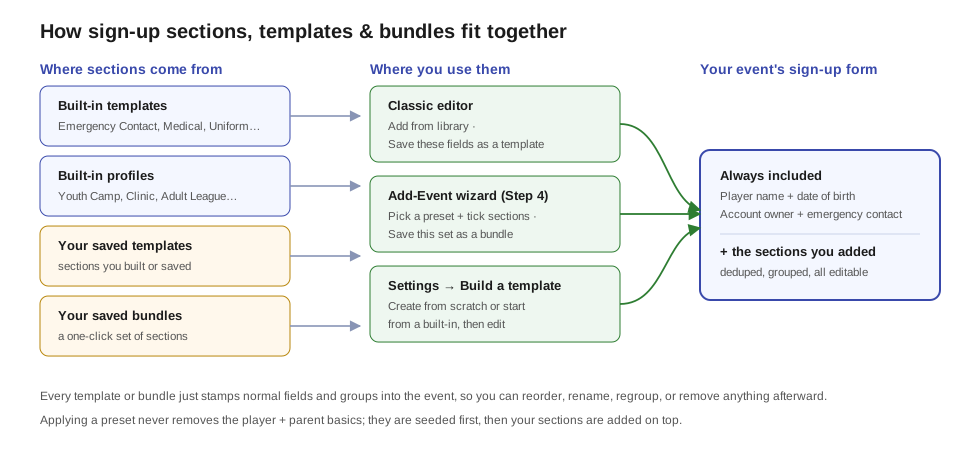
- Add the Emergency Contact section to new events by default – on by default, so
every new event asks for an emergency name + phone. Untick to start new events
without it (you can still add it per event). - Starter profile – optionally auto-fill every new event with a ready-made field
set (Youth Camp, Clinic / Class, Adult League, Tournament, plus any bundle you have
saved). “None” starts events blank. You can always change an individual event afterward. - Saved field templates – the templates you saved (from an event’s field builder or
the Build a template panel below) are listed here; tick one and Save Changes to delete it. - Build a template – create a reusable section without touching an event. Give it a
name, an optional section heading, and fill in the rows (each field’s label, type, whether
it is asked once per family or for each participant, and whether it is required). Prefer to
start from something? Pick a built-in or one of your own from Start from to prefill the
form, then edit. Saving with a name you already used overwrites that template, which is
how you edit one. Empty rows are ignored. Your saved templates then appear in every event’s
“Add from library” and in the Add-Event wizard. - Saved bundles – a bundle is a one-click set of sections you saved from the Add-Event
wizard (“Save this set of sections as a reusable bundle”). Bundles show up as starter
presets in the wizard and in the Starter profile dropdown above. Tick one and Save Changes
to delete it. - Participant levels – the choices in the “Level” question on your sign-up form, one per
line, plus the field’s label (Level / Division / Tier). Leave it blank for a generic
default (Recreational, Competitive / Travel, Elite, High School, Other). A soccer club can
click Load US Youth Soccer preset for the familiar list. Enter only the levels your
program actually uses: league names like AYSO, ECNL, or MLS Next are third-party trademarks,
so use them only if your teams genuinely compete there. KeepsYa isn’t affiliated with any
league.
Data
- Delete all data on uninstall – Leave this unchecked. If you ever fully
delete the plugin with this checked, all your sign-up records are erased for
good. Keeping it unchecked protects your records.
Payments tab
This is where you turn on the ways families can pay. Each method is a card; turn
one on and its settings appear underneath it.
Offline methods (cash / Zelle / Venmo / Cash App / PayPal / Apple Cash / check / other)
These are reserve now, pay later: the family holds their spot, then pays you
directly (cash, Zelle, Venmo, Cash App, PayPal, Apple Cash, check, or a custom
Other method you name yourself), and you mark it paid. For each one you turn
on, you can set:
- Label shown at checkout – What the person sees, like “Pay cash at the first
session”. - Payment instructions – The directions they get after they sign up, like
“Bring $50 cash to the first practice” or your Zelle email. - Tappable pay link (optional) – A link that opens your payment app, like your
Venmo profile (venmo.com/u/your-handle). On a phone it opens the app. (Not
shown for cash and check, which are paid in person.) - Payment QR image (optional) – Pick one of two ways:
- Auto-generate from the pay link – KeepsYa builds a QR code from your pay
link automatically. You will see a preview as you type the link; it is saved
when you save settings. Leave the pay link blank for no QR. - Upload my own image – Choose or upload an image from your media library.
This is the only way for Zelle, whose QR code can only come from your bank
app. Use a square image, at least 300×300 pixels. - (Not shown for cash and check – there is nothing to pay online.)
- Reminders – This depends on the method:
- Cash and check are paid in person at the event, so they get no pay-now
reminders. Instead you get one toggle: Remind the family the day before to
bring payment to the event. Its timing is set on the Reminders tab. - Zelle, Venmo, Cash App, PayPal, and Apple Cash get Send payment-due
reminders – the nudge series for an unpaid hold. On by default; timing is set
on the Reminders tab.
Pay now by card (coming soon)
Real-time card payments, where a family pays instantly when they book, are coming
to KeepsYa. You will see cards for Stripe, Square, PayPal / Venmo,
Apple Pay, and Authorize.Net. Apple Pay (along with Google Pay and Cash App
Pay) is delivered through Stripe or Square rather than as a standalone processor, so
it turns on automatically once you connect one of those. These need the separate
KeepsYa Payments add-on. Reserve-then-pay above works today without it.
Where did credit and punch-card settings go? The cancellation deadline,
auto-issue credit, and promo-credit expiry now live on the
Stored Value page, and punch-card expiry
on the Punch Cards page, right next to the
balances they affect. See Store credit and punch cards.
Reminders tab
Everything here is automatic email timing. Each setting runs on its own timer, so you
can use any of them on its own. Leave a value at 0 to turn that one off.
Pre-event reminder
- Reminder lead time – How many days before an event KeepsYa sends a reminder email
to everyone signed up (paid or not; set to 0 to turn reminders off). Beyond the
reminder itself, this email does marketing for you: it includes an “Invite a
friend” block with the family’s referral link to that event (unless it’s sold out)
and a ready-to-paste message, plus links to other upcoming sessions they aren’t
signed up for. See Referrals.
Payment Reminders
These collect money on offline (cash / Zelle / Venmo / check) bookings that have not
been paid yet.
- Customer payment-due reminder – How long after booking the first reminder
goes out, how often to repeat it after that, and the maximum number of
reminders before you stop nudging. Starting values: first reminder 24 hours
after booking, repeat every 24 hours, up to 3 times. These only go to the
remote methods (Zelle / Venmo / Cash App / PayPal / Apple Cash) with “Send
payment-due reminders” turned on. Cash and check are skipped here; they use
the next setting instead. - Bring-payment reminder (cash / check) – How many hours before the event to
send the “please bring your payment” nudge for unpaid cash / check holds. Starting
value is 24 hours. A booking made inside that window still gets one
short-notice nudge; once the event starts it is skipped. - Owner “who still owes” summary – How often KeepsYa emails you a single
digest of everyone with an unpaid hold, so you do not have to go hunting. The
starting value is every 7 days. - Auto-release unpaid holds – A checkbox turns this on; when on, an unpaid hold is
released automatically after the number of hours you set, so the spot opens back up
(and the waitlist moves up). Off by default. You can also set a different number on a
single event in its Payment field; the event’s value wins over this default. - Spot-release warning – How many hours before an unpaid hold is auto-released
to warn the family that they will lose the spot unless they pay by the cutoff.
Starting value is 24 hours. It only shows when auto-release is turned on, and
it never sends if the event has already started or there is no time left in the
window, so a last-minute booking simply gets no warning that could not arrive in
time.
Each reminder has an Edit this email link that opens its wording in the email editor.
Referrals tab
Turn the referral program on here to give every family a code and an invite link to
share (the link works from any page on your site and is remembered for 30 days). When a
family they refer signs up and pays for their first booking, the referrer earns account
credit, and the new family can get a welcome bonus too. When the program is off, the rest
of the options here are hidden. Settings:
- Referrer reward and the optional Referee reward (the new family’s welcome
bonus; 0 = off). Each can be a flat $ amount or a percent of the booking. A
single event can override these in the event editor (Referral rewards (this event)). - Allow pass-along / waive – lets a family choose, in their account, to pass their
referral reward to the family they refer (the new family then gets both rewards, the
referrer gets none) or to waive it. Off by default. - New-family reward delivery – whether the referred family’s reward arrives as
account credit after their first paid booking (default) or as a discount on
their first booking applied at checkout. The discount works on every checkout path,
never exceeds the booking price, and is reserved so it can only be used once. - Promo in emails – adds a small footer to family emails with that family’s own
invite link and the reward explanation (owner/admin emails are skipped). - Share-kit page URL – an optional page containing the
[keepsya_referral_kit]
shortcode (ready-to-send invite messages families can copy). When set, the email promo
links straight to it.
Full details, including exactly when the reward is paid and how families spend it, are in
Referrals.
Wording tab
KeepsYa works for any kind of program, so you can rename the roles to match yours.
For each role you can set a singular and plural word; leave a box blank to
keep the default. Whatever you choose shows up everywhere families and staff see it
(sign-up forms, the roster, emails, and so on).
- Participant – the person attending. Default Player / Players. You might
use Child, Student, Attendee, Athlete, Dancer, and so on. - Client – the person who books and pays. Default Parent / Parents. You
might use Guardian, Client, or Member. - Coach – who runs a session. Default Coach / Coaches. You might use
Instructor, Trainer, or Teacher. - Session – a single event / class. Default Session / Sessions. You might use
Training, Class, Lesson, or Event (e.g. “This training is full”). - Program – the overall thing families sign up for. Default Event / Events. You
might use Camp, Program, Course, League, Clinic, or Academy. (This only renames KeepsYa’s
own wording; it never changes The Events Calendar’s menus.) - Team – a group of participants. Default Team / Teams. You might use Group, Squad,
Cohort, or Cabin. - Family – the customer household. Default Family / Families. You might use
Household or Member. - Location – where it happens. Default Location / Locations. You might use Venue,
Studio, Field, Pool, or Facility. - Spot – an available place. Default Spot / Spots. You might use Space, Seat,
or Place (e.g. “3 spaces left”). - Waitlist – the waiting line when full. Default Waitlist / Waitlists. You might use
Standby or Waiting list. - Roster – the list of who is registered. Default Roster / Rosters. You might use
Class list or Attendance. - Booking – a reservation / sign-up. Default Booking / Bookings. You might use
Registration, Reservation, or Enrollment (this also covers the word “registration”).
Because the word you pick for Participant is used everywhere, discount names follow it
too: the “Multi-attendee discount” reads as “Multi-student discount”, “Multi-dancer discount”,
and so on once you rename Participant.
Emails tab
Email delivery
- From name and From email – Who the emails appear to come from (for
example, “Riverside Soccer Club” and “[email protected]”). - Admin notification email – Where you get an alert when someone new
signs up. - Recommended: for reliable delivery, install a dedicated email (SMTP) plugin such
as FluentSMTP, Gravity SMTP, WP Mail SMTP, or SureMail. WordPress’s built-in mail is
easily marked as spam; an SMTP plugin sends through a real mail service.
Email wording
The subject and wording of every customer email (confirmations, reminders,
cancellation notices, account emails) are edited on their own screen. Click
Open the email editor (or go to KeepsYa → Emails).
There you can change the wording, reset any email to its default, and send
yourself a test. The amounts, dates, and buttons are filled in automatically, so you
only edit the words. See Manage sign-ups for more.
Save your work
Click the Save button at the bottom when you are done. It saves all six
tabs at once. You can come back and change any of this later.
Next: Add an event →