Home / Help & Docs / Repeating events
Repeating events
← Add an event · Next: Show events on your website →
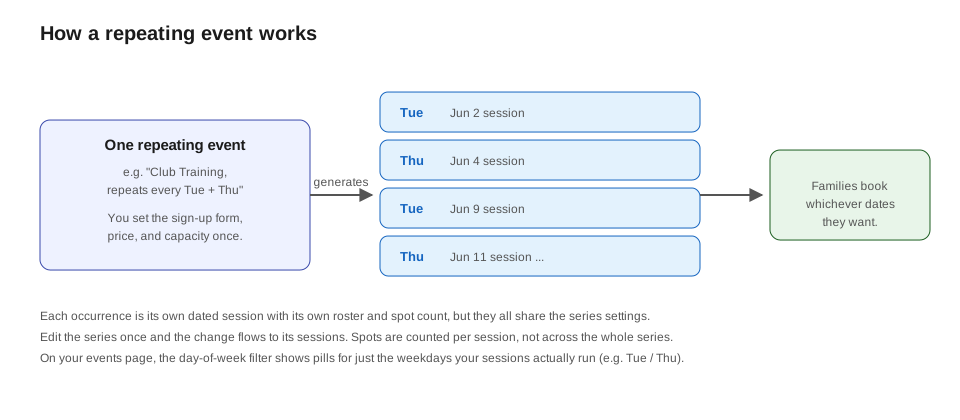
Do you run the same practice every week? You do not have to type it in over and
over. KeepsYa can make an event repeat for you. Each repeat becomes its own event
with its own sign-up list, so you always know who is coming on which day.
Make an event repeat
- Open or create an event (see Add an event).
- In the Registration & Payment box, find the part called Repeat
(recurring sessions). - Choose how often it repeats in the Repeat menu:
– Does not repeat – just this one time.
– Daily – every day.
– Weekly – every week.
– Monthly – every month. - Set Every [N] to say how often. For example, “Every 1 week” is weekly;
“Every 2 weeks” skips a week each time. - If you picked Weekly, check the days of the week it happens on. For
example, check Monday, Wednesday, and Friday for a three-times-a-week
practice. - Choose when it should stop:
– for [N] sessions – make an exact number, like 8 practices.
– until [date] – keep going until a date you pick. - Click Update.
KeepsYa makes all the sessions for you. You will see a note like “8 additional
sessions generated in this series.”
Good to know: Each session is separate. Each one has its own number of
spots, its own sign-up list, and its own check-in. The first event you made is
the “parent” of the group.
Change one session, or all of them
Sometimes you need to change something after the sessions are made, like a new
coach or a higher spot limit. When you open one of the repeated sessions, you
will see a menu called Apply changes to other sessions with two choices:
- This session only – the change affects just the one you are editing. (This
is the normal choice.) - All future sessions – the change copies to every session in the series
from today forward.
Make your change, pick how far it should spread, and click Update.
What gets copied
When you choose “all future sessions”, KeepsYa copies the shared details: title,
description, photo, category, tags, coach, spot limit, age group, and similar
settings.
KeepsYa is careful with three things:
- Past sessions are never touched. A mass edit only reaches sessions from
today forward. Sessions that have already happened stay exactly as they were. - Dates and sign-ups are never changed. Moving one session never moves the
others, and nobody’s sign-up is ever removed. - Price and packages are left alone on any session that already has people
signed up, so a family who already booked keeps the price they agreed to and
you never surprise anyone.
Adding more later
Need more sessions? Open the parent event, change the end date or the number of
sessions, and click Update. KeepsYa adds the new ones and never duplicates the
ones you already have. It also never creates a session for a date that has already
passed, so extending a long-running series only ever adds dates in the future.
Deleting a session or a series
You cannot trash or permanently delete an event while any family is signed up for
it, paid or free. That protects people who are counting on the session and keeps
their record intact. To take a session down, open it and Cancel it first:
paid families are credited or refunded, free sign-ups are cancelled cleanly, and
everyone keeps a record. An event with nobody signed up deletes normally.
This applies to the first session in a series too. The first session is both the
template for the series and a real session families can book, so if it has sign-ups
it follows the same cancel-first rule.
Finding a series in the events list
In Events, the first session of a series (the seed) is badged “Series seed”
and highlighted. It stays listed even when Hide past events is on, so you can always
find a series to edit, even one that started months ago. Use the Series seeds filter in
the toolbar to show only seeds (a quick “manage my series” view) or to hide them.
The Participants column shows how many families are signed up for each session.
If you run a plugin that manages admin columns (an “admin columns” or site-enhancement
tool), a brand-new column like Participants may be hidden until you enable it in that
plugin’s column settings, since those tools control which columns show.