Home / Help & Docs / Groups and delegates (Pro)
Groups and delegates (Pro)
← Accounts, login, and guest checkout · Deep-dive index
Sometimes you want an event open to one specific group of people and nobody
else: a single club, a select team, an invite-only clinic. And sometimes you’d
rather not be the one adding all those people yourself. Groups let you lock
an event to a named list of members. A delegate is a member you hand the keys
to, so they run their own group from a simple page on your website, no WordPress
login and no admin access needed.
This is a KeepsYa Pro feature. If you don’t run private or group-only events,
you can skip this page entirely; nothing here affects your public events.
The idea in one picture
- You (the owner) create a group and decide which events only that group can
register for. - You make one of its members a delegate.
- The delegate gets a friendly email and a link to their own group portal,
where they invite their people, see who’s signed up, and (if you allow it) name
a co-delegate to help. - Everyone the delegate invites gets an account automatically when they accept, so
they can register for the group’s private sessions.
You stay in control the whole time. A delegate can only ever touch their own
group.
Part A: Owner setup (do this once per group)
1. Create the group
Go to KeepsYa → Groups, type a name (for
example, “MLS Elite” or “Saturday Academy”), and click Create. That’s the
whole group; you’ll add people next.
2. Add the first member and make them a delegate
Open the group. Under Members, add someone by the email or username of their
existing account, and tick Delegate (can manage this group) before you click
Add member.
Heads-up: the owner’s “Add member” box needs an account that already
exists. If the person has never signed up on your site, invite them the easy
way instead: add them as a plain member first, or let a delegate invite them from
the portal (portal invites create the account automatically on accept). The first
delegate, though, is usually someone you know already has an account.
The moment you make someone a delegate, KeepsYa emails them a welcome message
with a one-tap sign-in link to their portal (more on that email below).
3. Delegates can appoint co-delegates
Delegates can share the load. From their portal, a delegate can promote a member to
co-delegate, and can invite a brand new person straight in as a delegate. This is
on for every group, so a delegate is never stuck waiting on you to add help.
You always keep full control from KeepsYa → Groups:
you can add, promote, or demote any delegate yourself. (Developers can turn co-delegate
appointment off in code with the keepsya_group_allow_co_delegates filter if a site ever
needs to.)
4. Make an event group-only
In the event’s Registration & Payment box, set Visibility away from
Everyone and tick the group(s) allowed to register. Now only logged-in members of
those groups can sign up. (Recurring series pass this setting down to their
sessions.) A hidden event won’t show in your public lists; share its link, or let
members find it from the delegate’s portal.
Part B: The delegate’s portal (what your delegate does)
Getting in
The delegate reaches their portal two ways, both of which you set up for free:
- The welcome email you triggered in step 2 has a “Manage your group” button
that signs them straight in. - On their account page (
[keepsya_account]), a “Manage your group” button
appears in the quick-links bar (delegates only see it).
Both land on the Manage Your Group page, an auto-created page that holds the
[keepsya_group_portal] shortcode. (KeepsYa adds this page for you when Pro is
active; it’s also offered in the setup wizard for fresh installs.)
If the delegate manages more than one group, they’ll see a short “Your groups”
list first and pick one.
At the top of every group is a collapsible “How this works” panel with these
same instructions, so a delegate always has the guidance in front of them, no login
and no hunting for a help page.
Inviting members
Inside a group, the delegate has two invite boxes:
- One at a time: type an email, click Send invite.
- In bulk: paste a whole list (commas, spaces, or new lines), click Send all
invites.
Each person gets an email with a link to accept. When they accept, an account is
created for them automatically (no password needed to start) and they join the
group, so they can register for its private sessions right away. People who are
already members are skipped, and obviously-bad email addresses are flagged.
Adding parents by QR code (in person)
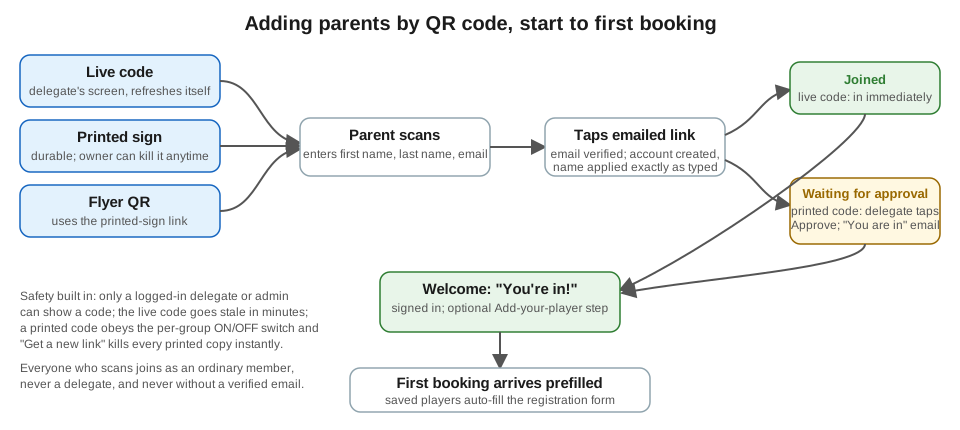
The fastest way to sign people up at the field: inside the group, open “Add parents by
QR code.” Show the code on your screen; a parent scans it with their phone camera,
types their name and email on a simple page, and gets an email link. One tap on that
link and they are in: account created, name saved, group joined, signed in. No password,
no spelling emails out loud.
A few things to know:
- Show it live, don’t print it. The code refreshes itself every few minutes for
safety (a shown code stays good for about 15 to 30 minutes). Tap Refresh code to
get a fresh one anytime. If a parent’s scan says the code expired, refresh and let
them scan again. - Only a logged-in delegate or admin can display the code, and everyone who scans it
must confirm their email by tapping the emailed link before they become a member. - People who scan join as ordinary members, never delegates.
- The same box also appears for the owner in KeepsYa → Groups in wp-admin.
Prefer a printed sign on the table? The same box manages a printed code too:
- Turn “printed code” ON for the group (it is off by default), then Open printable
sheet for a clean page with a big QR and 3-step instructions, ready to print. - Because a printed code can travel beyond the people you showed it to, its signups
wait for your approval: the parent still confirms their email, then appears in your
member list highlighted as waiting for approval with Approve / Deny buttons. On
approve they get a “You are in!” email (editable under KeepsYa → Emails) with a one-tap
sign-in; deny removes them. - Turn the printed code OFF anytime (end of season, sign went missing) and every
printed copy dies instantly. Get a new link does the same while giving you a fresh
code to print. - The box counts how many signups came in from the printed code, and shows a QR
funnel (“N scans, N signed up, N joined”) so you can see how well the code converts.
After joining, the welcome page also offers parents an optional “Add your player”
step (name and birth year). Anything they save prefills their first booking form, and
skipping is fine; the booking form asks anyway.
Inviting someone straight in as a delegate
Each invite box has an extra checkbox: “Invite as a delegate.” Tick it and the new
person becomes a co-delegate the moment they accept, ready to invite and manage
alongside the first delegate. Leave it unticked for an ordinary member.
Managing who’s in
- Pending invites are listed with a Revoke link to cancel one that hasn’t
been accepted yet. - Members are listed with their role. Each member has Make delegate / Make
member to promote or demote them, and everyone has a Remove link. - A delegate can’t act on themselves (no removing or demoting your own access;
that would orphan the group). Their own row simply reads (you). If a delegate
needs to step down, the owner reassigns or removes them from
KeepsYa → Groups.
Seeing who’s signed up
At the bottom, “Your group’s upcoming sessions” lists the group’s private events
with the date and how many people have registered so far, so the delegate can
chase stragglers without ever touching your admin.
The two emails (and how to word them yourself)
Both messages are fully editable under
KeepsYa → Emails, in the “Group emails”
section. Rewrite the subject, heading, intro, note, and closing to sound like you:
- Group invitation, sent to someone a delegate (or you) invites to join. The
default explains that accepting adds them to the group and creates an account for
them automatically if they don’t have one. - Group delegate welcome, sent when a member is made a delegate. The default
walks them through exactly how to invite people (one at a time or in bulk) and
what happens when someone accepts. It re-sends if you re-promote a delegate,
so it doubles as a “here’s how it works again” reminder.
Because they’re regular KeepsYa templates, they carry your business name, colors,
and the same look as every other email you send.
The boundaries (why this is safe to hand out)
- A delegate manages only the groups they’re assigned to. Every action is
checked against that; anything else is refused outright. - Delegates get no WordPress login and no admin access. The portal is an
ordinary front-end page. - A delegate can’t remove or demote themselves (that would orphan the group).
- You can see and override everything from
KeepsYa → Groups at any time: add or remove
members, promote or demote, rename, or delete the group.
Quick fixes
- The delegate doesn’t see “Manage your group” on their account page. They must
be signed in and actually be a delegate of at least one group. Confirm their
role under KeepsYa → Groups. - Adding a delegate by email from wp-admin. In KeepsYa → Groups,
the Add member box takes an email. Someone with an account is added right away; a
brand-new email gets an invite (tick Delegate to invite them as one) that joins them
when they accept. Only a bare username that matches no account can’t be invited, since
there’s no address to send to. - No invitation email arrived. Your site must be able to send email; see the
Go-Live Checklist email step, and have them check
spam/promotions.
Back to the Deep-dive index →