Home / Help & Docs / Check-in day
Check-in day
← Cancellations, credit, and refunds · Next: Store credit and punch cards →
This page explains how you take attendance on the day of an event, and clears up
one common mix-up about money.
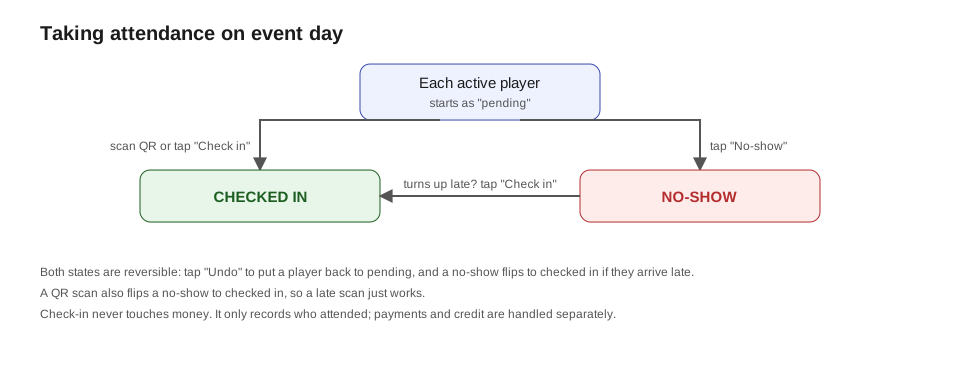
Checking people in does NOT touch the money
This is the important part, so it comes first:
Check-in only records who showed up. It does not charge anyone, and it does
not subtract credit or a punch. All of the money was already handled when the
family booked the session, not when they arrive.
So you can check kids in freely without worrying about double-charging or using
up the wrong thing. (If you are curious how credit and punches get used, that
happens at booking time – see
Store credit and punch cards.)
How check-in works
- On event day, open the event’s roster: KeepsYa → Rosters → [your
event], and start Check-in mode. - On your phone or tablet, scan each child’s QR code (you can print a QR
sheet from the roster, or families can show theirs). - The screen shows the child’s name and any notes you collected (like
“allergic to peanuts”), and marks them present. - If you scan the same child again, it tells you they are already checked in,
so you never count anyone twice.
Families carry their codes
You do not have to hand anything out. Each child’s QR code is already:
- in the family’s booking confirmation email,
- in the reminder email that goes out before the event, and
- on the family’s account page, under My Bookings (“Show check-in QR codes”).
So the day-of moment works like a boarding pass: the parent holds up their
phone, you scan it, the screen says the child’s name, done. The code itself is
harmless in the family’s hands; if a parent taps their own QR link, nothing
happens. Only a device that is logged in with check-in permission (or has the
helper PIN below) can actually mark a child present.
That is the whole process. Attendance is saved with the time they were scanned
in.
Marking a no-show
Next to each player on the check-in screen you also have a No-show button, for
anyone who does not turn up. Tap it and the player is recorded as a no-show (the
screen tracks a no-show count alongside the checked-in count). No money changes,
exactly like a normal check-in.
If a no-show arrives late, just tap Check in on their row (or scan their QR)
and they flip straight to checked in. Both states are reversible: Undo puts a
player back to pending if you tap something by mistake.
Dealing with no-shows after the event
Marking a no-show never moves money on its own, on purpose. After the event, the
No-show Follow-up screen
(KeepsYa → No-show Follow-up) lists everyone you marked as a no-show, with the
family’s tap-to-text contact. For each one you can Issue credit (goodwill account
credit, the amount is pre-filled from what they paid and you can change it) or Mark
handled (they forfeit, no money moves). Deciding after the event is deliberate:
by then any late arrival has already flipped to checked in, so there’s nothing to
take back. The menu shows a count of no-shows still waiting on a decision.
Multi-day events (camps)
For an event that runs over several days, attendance is taken one day at a time.
The check-in screen shows a row of day buttons at the top; tap a day to see that
day’s list and the day’s “Checked in / No-shows” count. It opens on today by
default (when today is one of the event’s days). Each player only appears on the days
they’re signed up for, so a child who booked three of four camp days only shows on
those three. A QR scan checks the player in for today. Every day’s attendance is
recorded separately, so Monday’s check-ins and Tuesday’s are independent.
Who can check people in
Site admins always can. You can also let coaches or helpers check people in by
giving them the check-in permission, so they do not need full access to your
website.
Helpers with a personal PIN (no password at the field)
Give each helper a Check-in PIN on their user profile: open Users,
edit the helper, and fill in the “Check-in PIN” field (3-6 digits). Every
helper gets their own PIN; the site will refuse a PIN that is already
assigned to someone else. On the day, the helper scans any child’s QR with
their own phone, the screen asks for the PIN, they type it once, and from
then on their phone checks players in for the rest of the day.
Because the PIN identifies the person, every check-in is recorded under
their name: the check-in screen shows “Checked in by [name]” on each row,
so you always know who marked whom, whether it was you, a coach, or a
helper. The PIN stops working at the end of the day, and immediately if you
change or clear it on their profile. Too many wrong guesses locks the device
out for a few minutes. With no PINs set anywhere, check-in stays
logins-only.
Why one PIN per person? A shared code can’t tell helpers apart. Personal
PINs mean the attendance record always says who did the checking in, which is
the audit trail you want when something needs untangling later.
A simple day-of routine
- Print the QR sheet (or make sure families have their codes) the night
before. - Open Check-in mode on your phone when you arrive.
- Scan each child as they show up. Watch for the notes that pop up.
- Tap Check in (or scan) as players arrive, and No-show for anyone who
doesn’t come. Afterward the screen shows who attended and who was a no-show,
in case you need to follow up.
See the coach and owner playbooks for a
printable-style checklist.