Home / Help & Docs / Add an event
Add an event
← Your settings · Next: Repeating events →
This is the main thing you will do over and over: make an event and turn on
sign-ups.
Step 1: Make the event
- In the left menu, find Events (this comes from The Events Calendar).
- Click Add New (or Add Event).
- Fill in the basics, just like writing a normal page:
– Title – the name, like “Saturday Skills Clinic”.
– Description – what it is about.
– Date and time – when it starts and ends.
– Location (venue) – where it is.
– Featured image – a photo. This is the picture that shows on your event
cards, so add a nice one.
– Category – for example, “Trainings” or “Camps”. Categories help people
filter your events later.
Do not publish yet. First, set up sign-ups in the next step.
Step 2: Open the Registration & Payment box
Scroll down the event editor until you see a box titled Registration &
Payment. This box is added by KeepsYa. Everything about sign-ups and money lives
here.
To turn on sign-ups, check the box that says Enable registration.
If you leave Enable registration unchecked, the event still shows on your
site, but there is no “Register” button. That is fine for an
announcement-only event.
Prices, spots, and packages
Now set how much it costs and how many people can join.
The simple way (one price)
- Overall capacity – the total number of spots. Type a number like
20.
Type0if there is no limit. - Enable waitlist when full – check this so people can join a waiting list
once all the spots are taken. - Price per participant – what one person pays, like
45. - Allow deposit and Deposit amount – check this if people may pay part
now and the rest later, and set how much the deposit is. - Early-bird price and Early-bird ends on – optional. Charge a lower price
through a set date, then the regular price automatically after it. Leave blank for none. - Multi-attendee discount – optional. Give a percent off each participant from a chosen
number onward (e.g. from the 2nd child at 20% takes 20% off every child after the first).
It applies automatically at checkout and shows as its own line in the price summary. Set
0for no discount.
That is all you need for a simple event.
The flexible way (packages)
Use packages when you want to offer choices at different prices, like:
- “Full Week” for $200
- “3 Days” for $120
- “Drop-in (1 day)” for $45
In the Packages / session options area, click Add package for each
choice and fill in:
- Label – the name people see (“Full Week”).
- Price – the cost.
- Capacity – how many can pick this option (
0means no limit). - Waitlist – allow a waiting list for this option.
- Days to choose – for camps that run several days. If you type
3, the
person must pick exactly 3 days. Leave it at0for a normal single price. - Description – an optional note shown at checkout.
Tip: If you add even one package, the package list is used instead of the
single “Price per participant”.
Sell a multi-day camp by the day (day passes)
For a multi-day event you don’t have to build the price ladder by hand. The
Suggest day passes panel appears as soon as your start and end dates span
more than one day (you don’t have to save the event first). Set the full
(all-days) Price per participant, then click Suggest day passes from full
price. KeepsYa fills the package list, most days first, from a full-event pass
down to a single day, priced so fewer days cost a little more per day (a “drop-in”
premium you can tune with the Single-day premium box, default 1.5x). Leave the
Round to nearest $5 box checked for tidy prices, or uncheck it for exact whole
dollars. For a $200 / 4-day camp that suggests roughly Full $200 / 3-day $175 /
2-day $135 / 1-day $75 (with rounding on; $133 for the 2-day pass with it off);
every row is editable, so adjust any price to taste. Families then
pick a pass and choose which specific days they’ll attend. (The Add Event
wizard offers the same button on its Tiers step.)
Per-day limits (for multi-day camps)
If your camp runs several days and you want to cap each day (not just the
total), use the Per-day capacity (multi-day camps) area:
- Players per day – the most kids allowed on any one day.
0turns this off. - Show “only N left” when a day drops to – when a day gets close to full,
KeepsYa shows a “only a few left” note to nudge people. The starting number is
fine. - Adjust specific days – only if one day needs a different limit. Type one
line per day, like2026-06-15=8.
Keep sign-ups open while the event runs (multi-day)
By default a single-day event stops taking sign-ups when it starts, while a
multi-day event keeps taking sign-ups right through its final day, so a family
can still join a camp that’s already underway. Control this per event with the
“Keep registration open while the event is in progress” checkbox in the editor
(and in the Add Event wizard). While a multi-day event is running, the day-picker
automatically hides days that have already passed, and any day pass that needs more
days than remain is hidden, so families can only sign up for the days still ahead.
In-progress events also stay in your listings with an “In progress, N days left”
badge instead of disappearing.
Set a Same-day cutoff time (optional) to stop taking that day’s sign-ups at a set time
of day (for example, 09:00) instead of keeping the day open until it ends. Leave it blank
to keep the day open all day.
Ask for the right details (attendee questions)
A sign-up form has two kinds of fields: a few asked once per booking (the account
owner and emergency contact) and the rest asked for each player the family adds.
Your custom questions go in the per-player group.
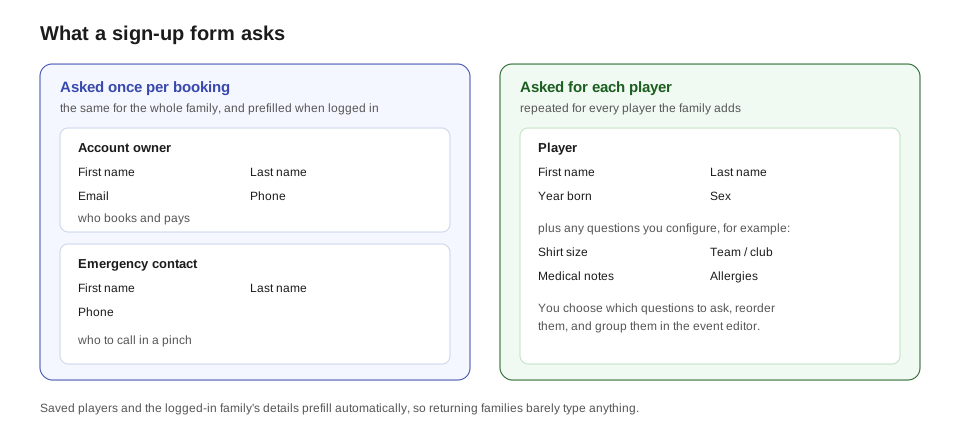
You often need extra info, like a shirt size or a medical note. Add your own
questions in the Attendee fields area. Click Add field for each question:
- Label – the question, like “Shirt size” or “Allergies”.
- Type – the kind of answer: short text, email, phone, number, date,
checkbox, a dropdown of choices, or a longer note box. - Required – check this if they must answer it.
- Saved – check this to remember the answer on the player’s profile for next
time. - Scope – choose Per player (ask for each child) or Once (ask one
time for the whole sign-up). - Options – if you chose the dropdown type, list the choices, one per line.
Add a ready-made section (the fastest way)
You rarely have to build common sections by hand. At the top of the Attendee fields
area:
- Quick add sections – tick a box (Emergency Contact, Medical & Allergies,
Authorized Pickup, Second Parent) and its fields drop in as a titled group. Untick
to remove them again. - Add from library – opens the full set: the quick-add ones plus Photo/Media
Consent, School & Grade, Dietary Restrictions, Jersey Number, Uniform Sizing, and
Insurance. Click one to insert it. - Save these fields as a reusable template – already built the perfect form? Type
a name and click Update. It is saved for your whole site and shows up in “Add from
library” on every other event. Manage or delete saved templates under
Settings, General, Registration fields.
New events also show a Start from a template panel with one-click starter
profiles, Youth Camp, Clinic / Class, Adult League, and Tournament,
plus any bundle you have saved, each a complete, sensible field set you can then
tweak. You can have one applied automatically to every new event from Settings,
General, Starter profile.
You don’t have to build a template from inside an event, either: Settings, General,
Build a template lets you create (or edit) a reusable section from scratch, or start
from a built-in to tweak. See Settings.
Everything a template or profile adds is just normal fields and groups, so you can
reorder, rename, regroup, or remove anything afterward.
Reorder and group your questions
The Attendee fields area is a drag-and-drop builder:
- Drag the handle (the ☰ on the left of a field) to reorder questions.
The order here is the order families see on the sign-up form. - Add group creates a titled section. Give it a title and an optional
short description, then drag fields into it. On the sign-up form, those fields
appear together under that title and description (for example, a “Medical & Safety”
group with the medical and allergy questions). - Drag a whole group by its handle to reorder the sections. Anything you leave in the
Ungrouped area shows with no section heading. - Removing a group is safe: its fields drop back into Ungrouped, never deleted.
- The built-in fields appear as special rows you can drag, group, rename, and mark
required: - Player fields (First name, Last name, Date of birth, Sex). You can rename them
(e.g. “Sex” to “Gender”) and remove Date of birth or Sex if you don’t collect them.
First name + Last name always stay (a booking needs a name). - Account Owner fields (the booking contact: First name, Last name, Email, Phone),
asked once per booking. Renamable, so a business with no parents can call this group
“Your info”; a contact name + email are always required (that’s where confirmations go). - Emergency Contact fields (First name, Last name, Phone), optional, remove the whole
group if it isn’t relevant. When both this group and the Account Owner group are shown,
a small “Same as account owner” link appears above these fields so a family that is
its own emergency contact can fill them in with one tap instead of retyping.
The built-in field types can’t be changed (the booking, rosters, and reminders depend
on them), but everything else, labels, order, grouping, is yours. The same structure
applies to every event type (camps, single sessions, and the multi-session picker), so
it’s consistent for repeat customers.
Groups show the same way on every sign-up form (single sessions, camps, and the
training schedule), so all your events present questions consistently.
Add helpful event details
Still in the Registration & Payment box, you can fill in extra details that show
on your event cards and help people choose:
- Age group – like “U-10” or “All ages”.
- Skill level – like “Beginner” or “Competitive”.
- Coach – who is running it.
- Drop-off time – when to arrive.
- What to bring – like “shin guards, water, snack”.
These are optional, but they make your events look complete and answer common
questions before people even ask.
Step 3: Publish
When everything looks good, click Publish (or Update if you already
published). Your event is now live and ready for sign-ups.
Prefer a guided flow? The Add-Event wizard
If you’d rather be walked through it, use KeepsYa, Add Event for a five-step wizard
that creates the same kind of event without the full editor:
- The basics – title, dates (single or multi-day), time, location, and an
optional Organizer (pick an existing one or “Add a new organizer…” with name,
email, phone, and website; it’s saved as a reusable organizer, like the location). - How many can come? – capacity and waitlist. (This comes before pricing, since the
pricing step is the busier one on a multi-day event.) - What does it cost? – free, one price, or tiers. On a one-price event you can also
set an early-bird price + end date and a multi-attendee discount right here. For a
multi-day event, click Suggest day passes to build an à la carte ladder (full-event
down to a single day); tick Round to nearest $5 for tidy prices. - What do you need from families? – start from a preset (Youth Camp, Clinic, Adult
League, Tournament, or one of your saved bundles), then optionally tick individual
sections to add on top (Emergency Contact, Uniform Sizing, your own saved sections, and
more). Use the (fields) link next to any section, or See the fields next to the
preset, to preview exactly what it asks. Every form already collects the player + parent
basics, so those are always included. Tick Save this set of sections as a reusable
bundle and name it to reuse the whole selection with one click next time. - Review & publish – a summary (including your add-on sections and any bundle you’re
saving), then Publish.
Everything the wizard creates is a normal event you can reopen and fine-tune in the full
editor afterward.
See it on your site
Want to put this event on a page so people can find it? See
Show events on your website.
Next: Repeating events →